Watch the podcast
Cynthia & Paul from the ExpSoft Labs walk you through the ten tools and the Files Manager of ExpSoft ArckheensToolzBasic 1.1.4.0.
The video plays from YouTube once you press Play. Watch it on YouTube
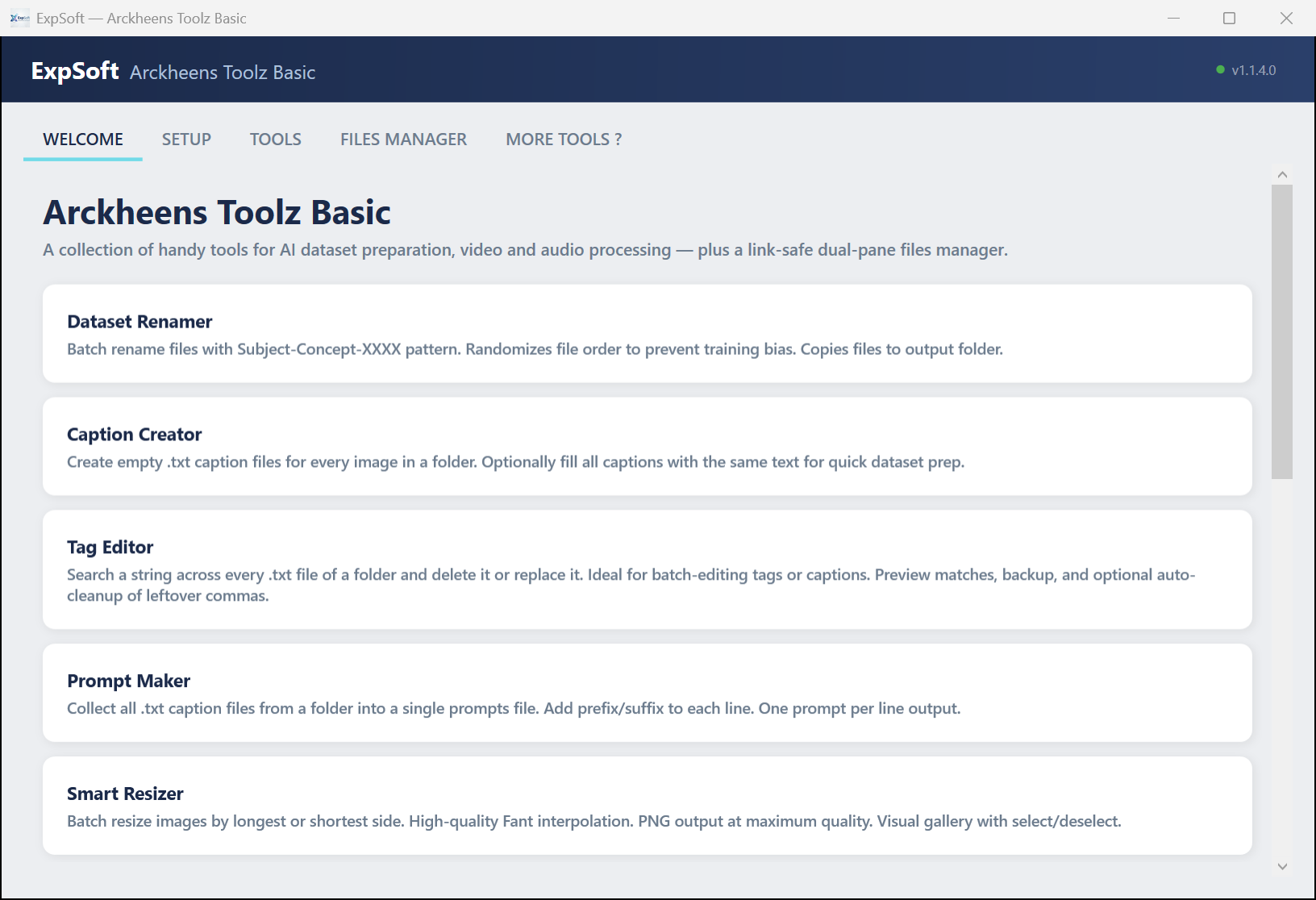
The 45 minutes of mechanical prep that stand between you and a LoRA training run, compressed into 10 one-click tools plus a link-safe Files Manager, in a single portable app. Built from years of PowerShell scripts, fused into one small .NET 8 program. Drop a folder, click, done. Free.
Each tool replaces a script you'd otherwise write yourself. Concrete examples below.
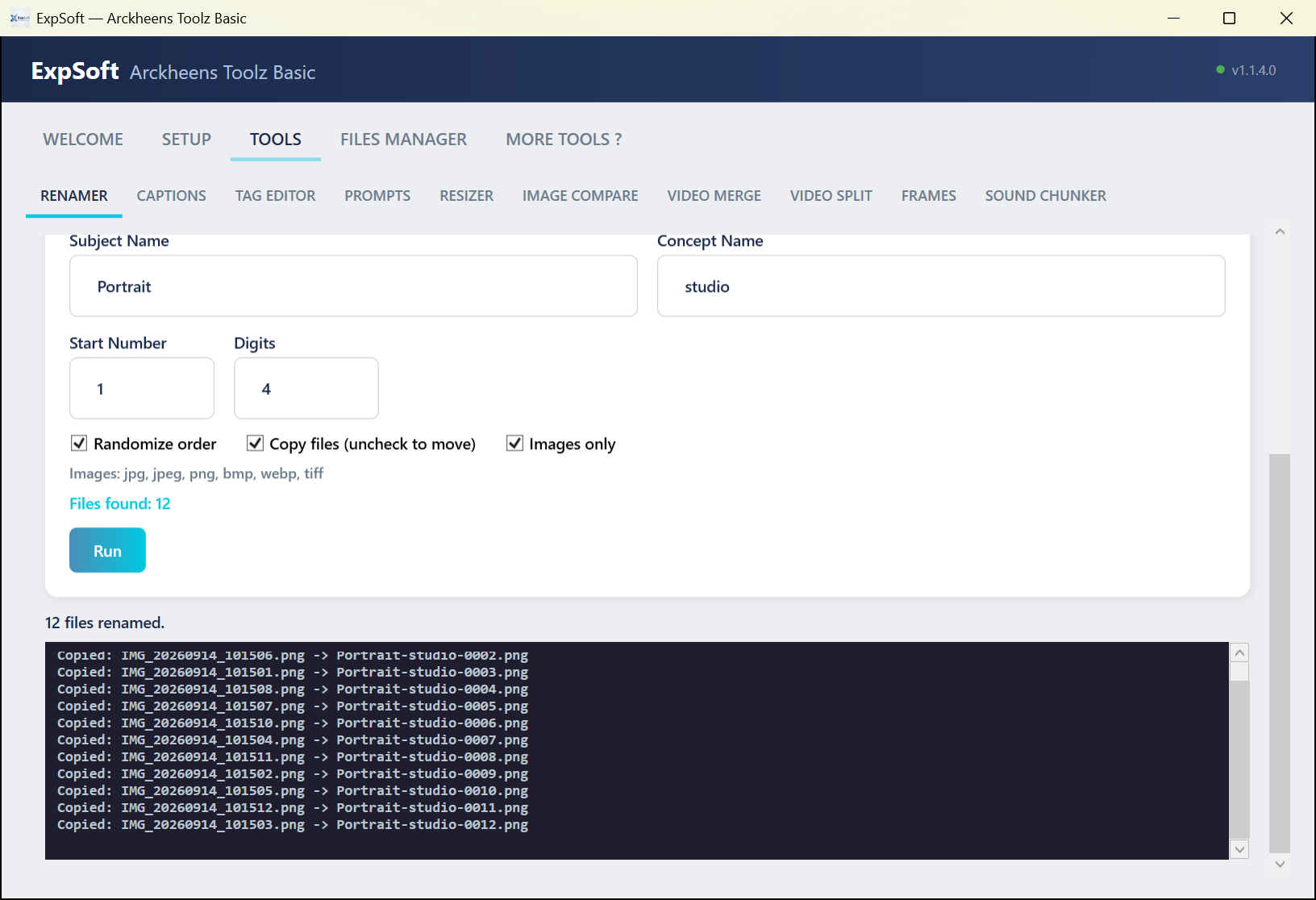
Bulk-renames a folder of files using <Subject>-<Concept>-NNNN.ext. Random shuffle by default to break lexicographical order bias during training. Recursive scan, configurable start number and digit width, copy-vs-move toggle (copy by default: the originals stay untouched).
Use case — 800 photos called IMG_20231104_205411.jpg become Portrait-studio-0001.jpg … Portrait-studio-0800.jpg, randomized, in a renamed/ folder. Your trainer can now find them and won't infer dumb temporal patterns from the original timestamps.
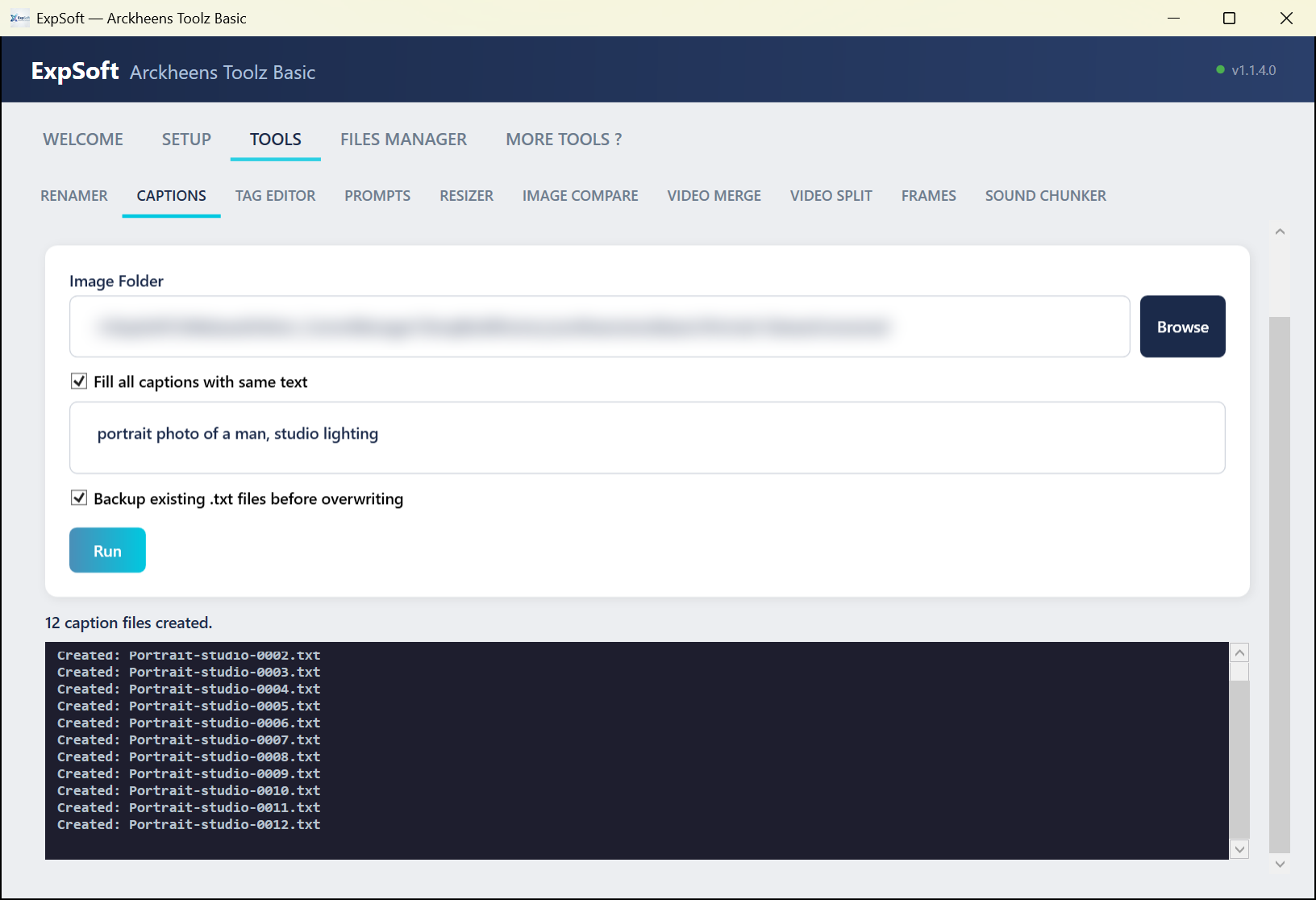
For each image in a folder, creates a matching .txt sidecar (same basename). Optional fill-with-text for a common trigger phrase; existing .txt are backed up with a timestamp suffix before being overwritten. Top-level only (no recursion — one dataset folder at a time).
Use case — the renamed 800 images need 800 caption sidecars for your trainer. Click once: 800 empty .txt appear next to them. Or fill them with "portrait photo of a man, studio lighting" as a starting point you'll refine in the next step.
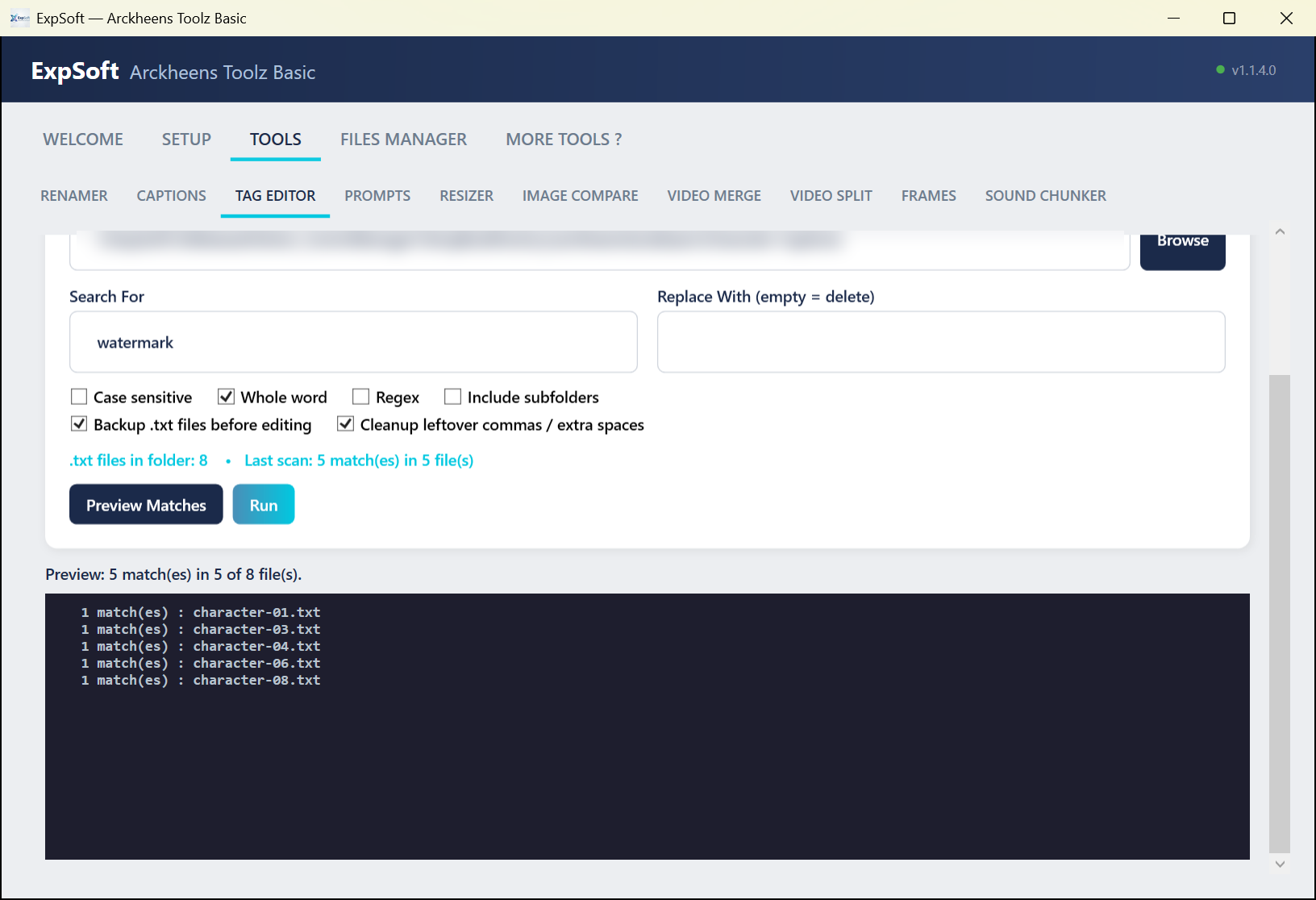
Search-and-replace (literal or regex, whole word, case sensitive) across every .txt in a folder, recursively. Backs up the original as .YYYYMMDDHHMMSS.bak before each pass. Auto-cleanup of orphan separators ("tag1, , tag2" → "tag1, tag2"). Preview Matches counts the matches before you commit — nothing is changed until you click Run.
Use case — auto-generated captions from a tagger are full of noise: "watermark", "signature", "blurry". Run three replaces with an empty target and the dataset becomes signal-only. Or normalise "blue eyes" / "blue_eyes" across 800 files in one pass. Indispensable for any auto-captioned dataset.
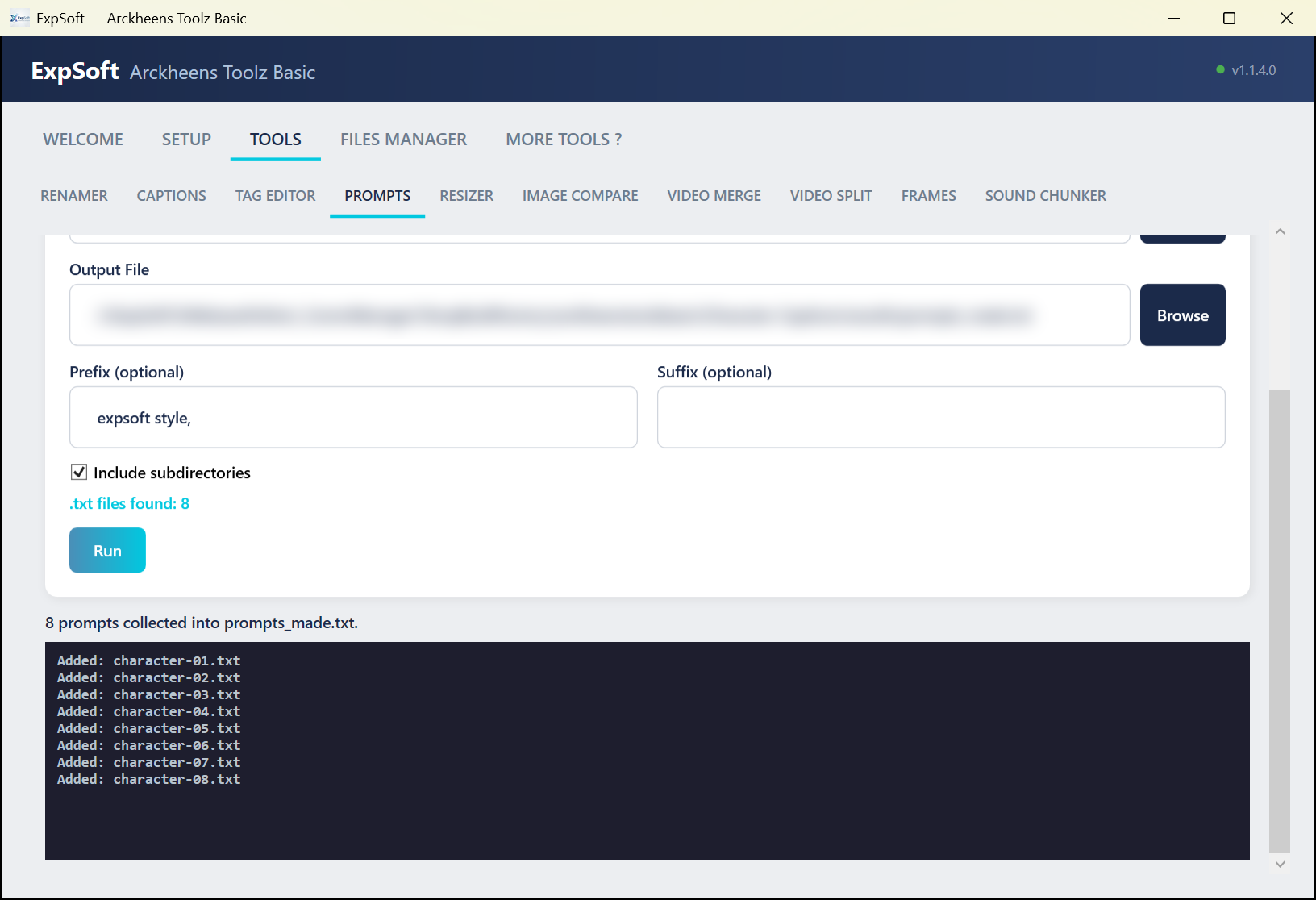
Walks a folder, reads every .txt, flattens each to a single line (whitespace collapsed), concatenates into one prompts_made.txt. Optional Prefix / Suffix wrap each line. Recursive option, anti-recursion guard (output file is auto-skipped during scan).
Use case — after curating 800 captions in Tag Editor, generate one big prompts file ready for your generator's batch queue. Or feed it to a benchmark script to compare two checkpoints on the SAME captions your dataset uses.
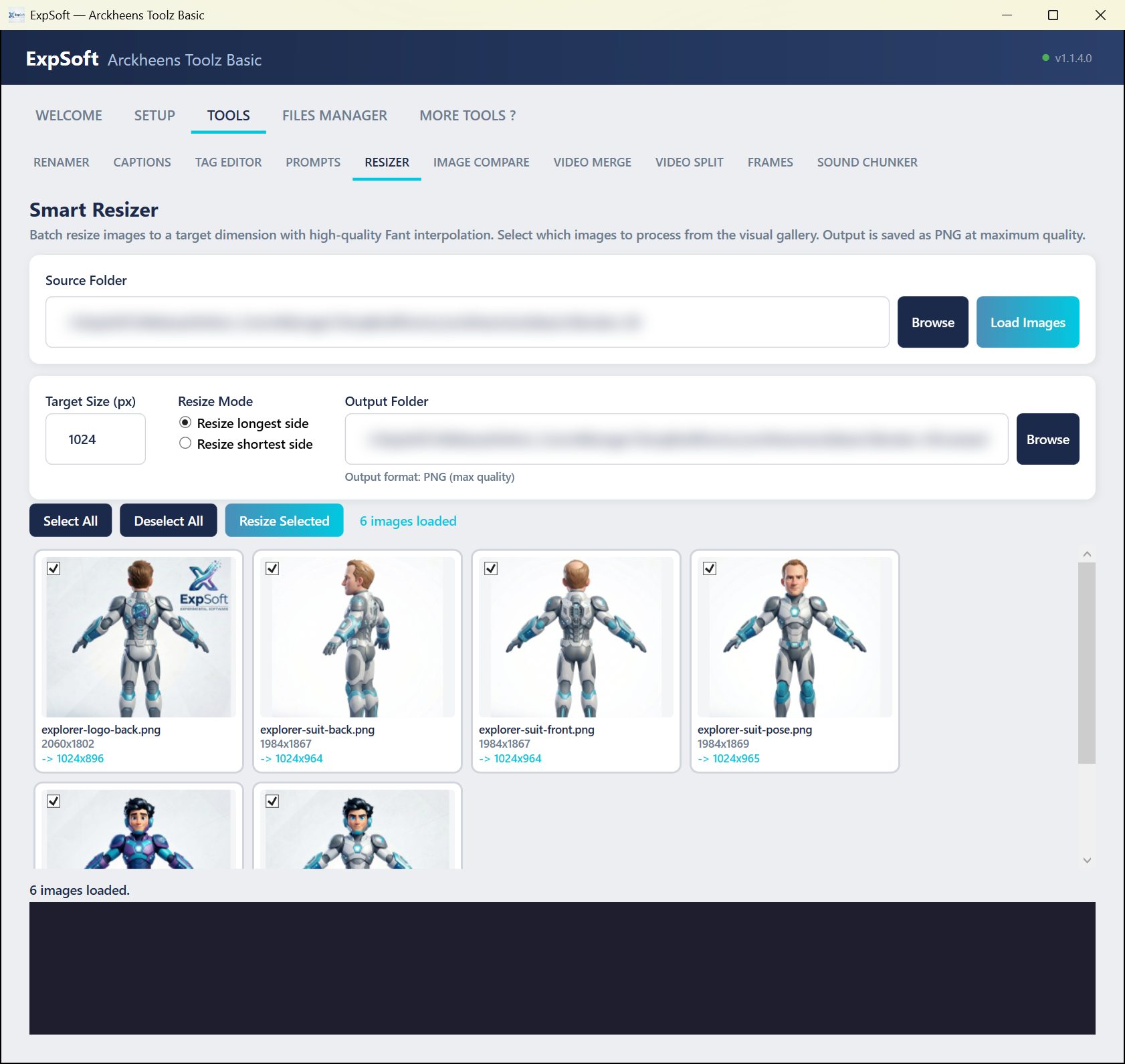
Visual gallery: 200 px thumbnails of every image in a folder, click-to-toggle selection, "Select All / None" for fast triage. Target size + longest-side / shortest-side mode. Live recompute of target dimensions under each thumb when you change settings. Output is always PNG (no lossy re-encoding) using WPF Fant interpolation (Lanczos-equivalent).
Use case — 800 reference photos at 4032×3024. Click to deselect the 12 blurry ones you spot in the thumbnails. Set "1024 longest side", click Resize Selected. Done — your trainer eats them straight.
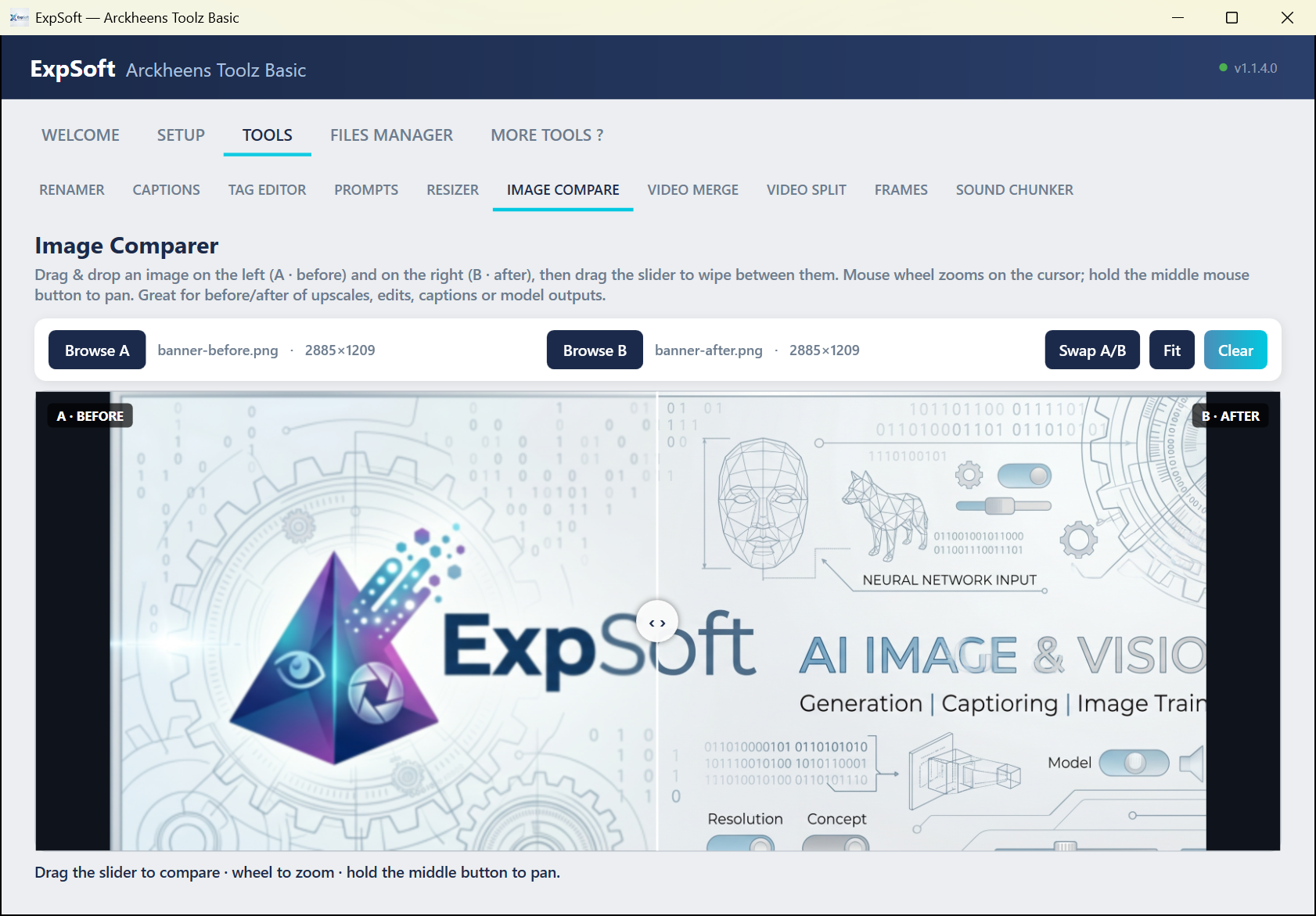
Load image A (before) and image B (after) — Browse or drag & drop — then drag the slider to wipe between them. The mouse wheel zooms where the cursor is, the middle button pans; both images share one transform, so they stay pixel-aligned. Swap A/B, Fit and Clear in one click.
Use case — check what an upscale or an edit really changed: original on A, result on B, zoom on the eyes, wipe. Same for two model outputs on the same prompt.
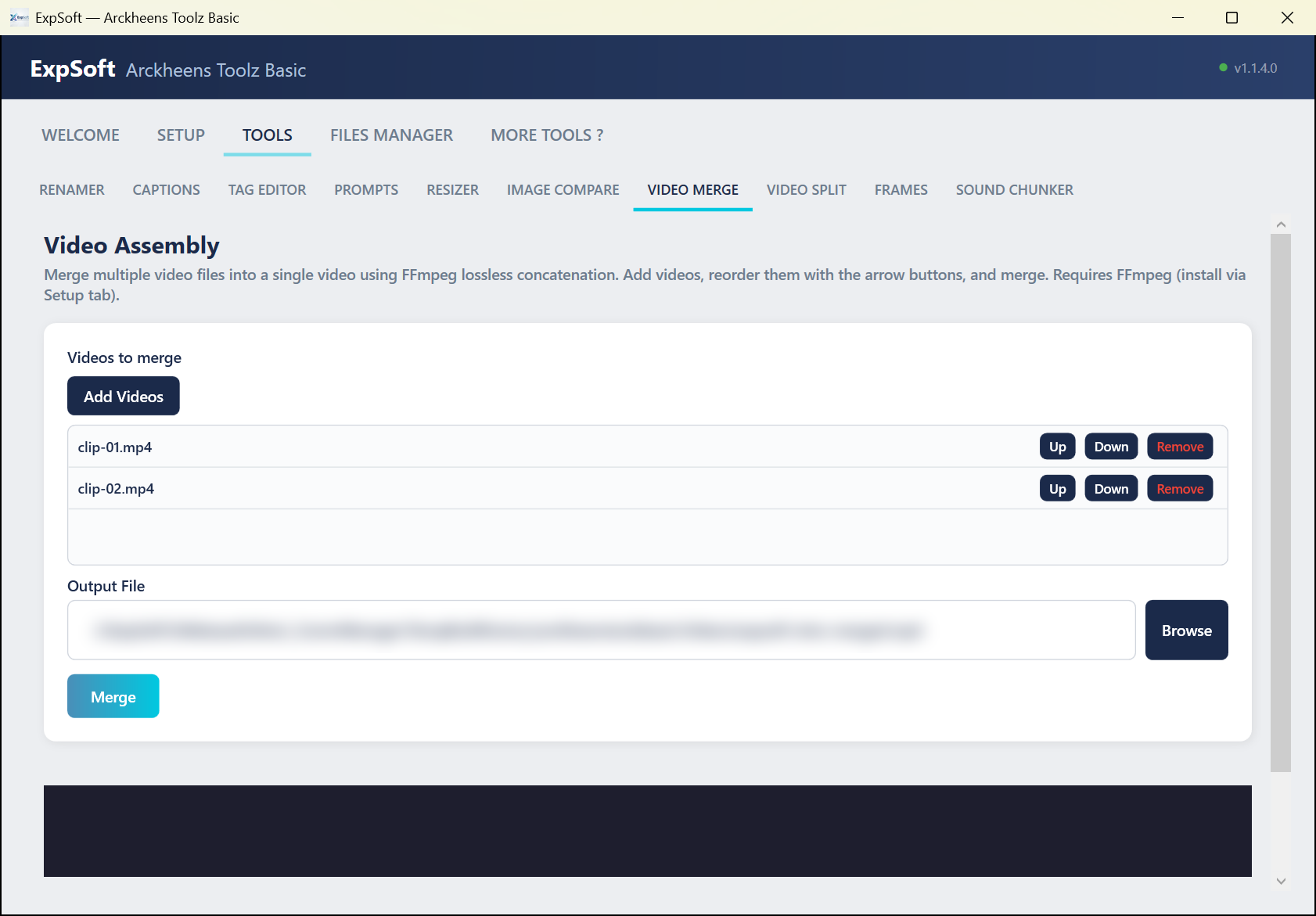
FFmpeg -f concat -safe 0 -c copy — lossless stream-copy concatenation. List of clips with Up / Down / Remove to set the final order. Live FFmpeg log during the run.
Use case — 8 short clips of someone speaking on a podcast (~30 s each, all H.264 1080p 30fps from the same source) → one continuous 4-min video for the next step (Split, Frames, or the Diarizer's audio track). Note: because nothing is re-encoded, the clips must share the same codec, resolution and frame rate.
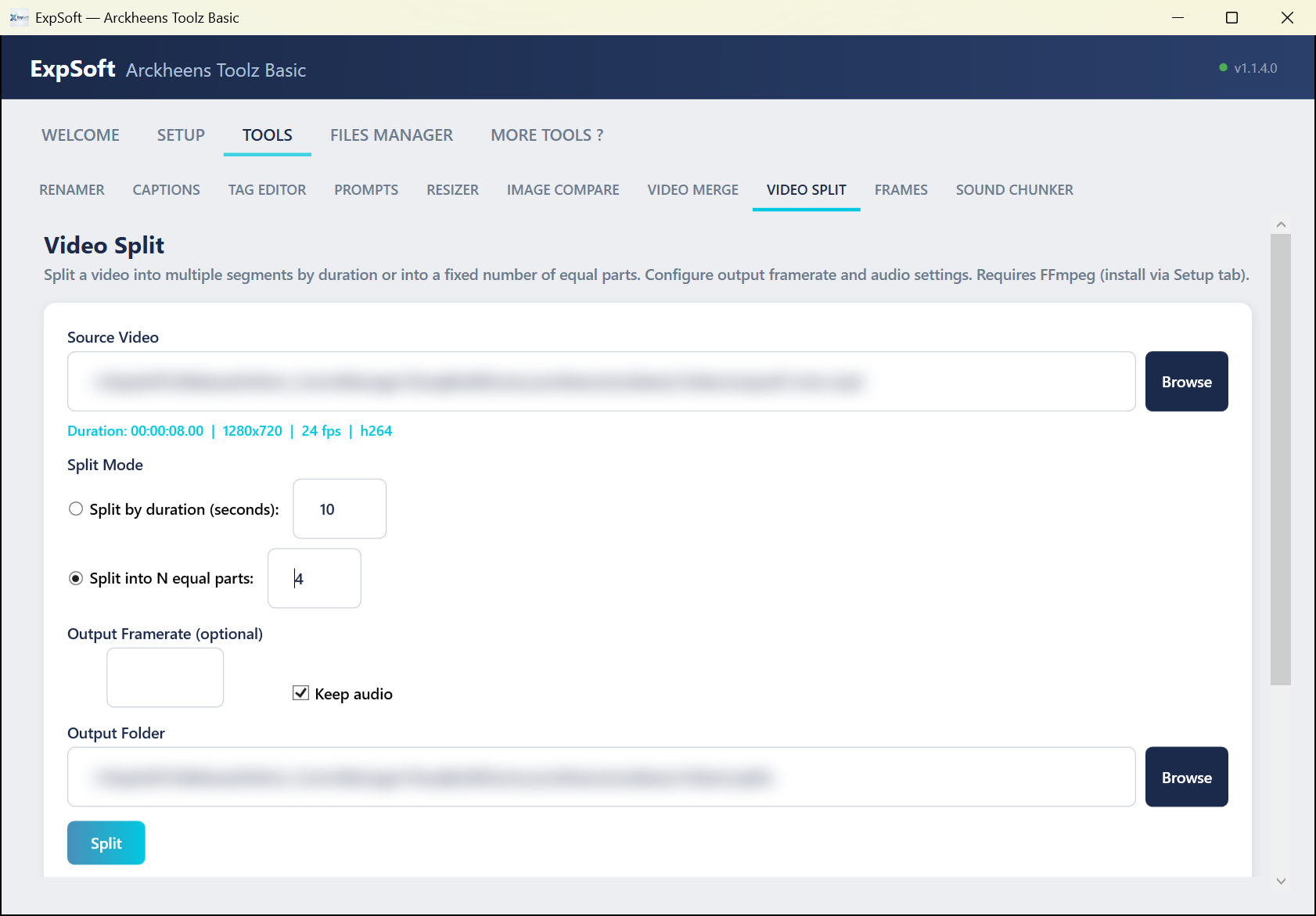
Two modes — By duration (a part every N seconds) or Into N equal parts (length computed from the source duration). Optional output framerate, optional audio drop. Live readout of source duration / resolution / fps / codec as soon as you pick the file. Parts are copied without re-encoding, so each cut falls on the nearest key frame.
Use case — a 2-hour interview or lecture video. Split into 60×120-second chunks for AI video pipelines that only take short clips. Or into 10 equal parts for distributed processing across multiple machines.
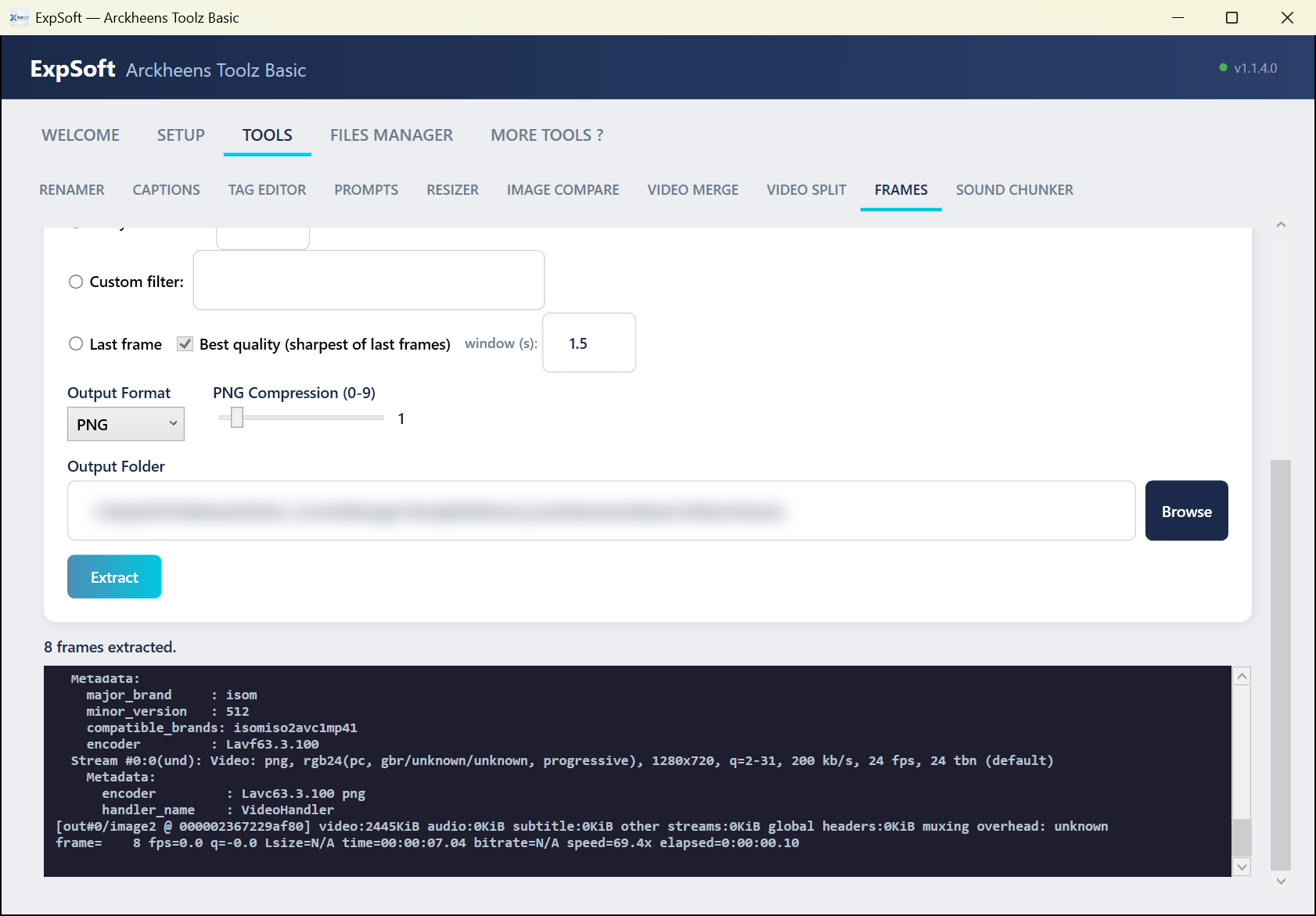
Five modes: Keyframes only (select=eq(pict_type,I) — best for diverse, scene-cut frames), All frames (massive output), Interval (one frame every N seconds via -vf "fps=1/N"), Custom -vf (power-user filter chain), or Last frame — with Best quality on, it looks at the last seconds of the video and keeps the sharpest frame instead of a motion-blurred one. Output PNG / JPEG / BMP / TIFF, configurable PNG compression level.
Use case — a music video of an actor or a stock footage reel becomes an image dataset. Keyframes-only on a 3-minute clip yields 80-200 visually distinct frames — feed those to the Renamer + Captions + Resizer pipeline above and you have a face / style LoRA training set in 10 minutes flat. Or grab the sharpest last frame of a generated clip to continue the video from where it stops.
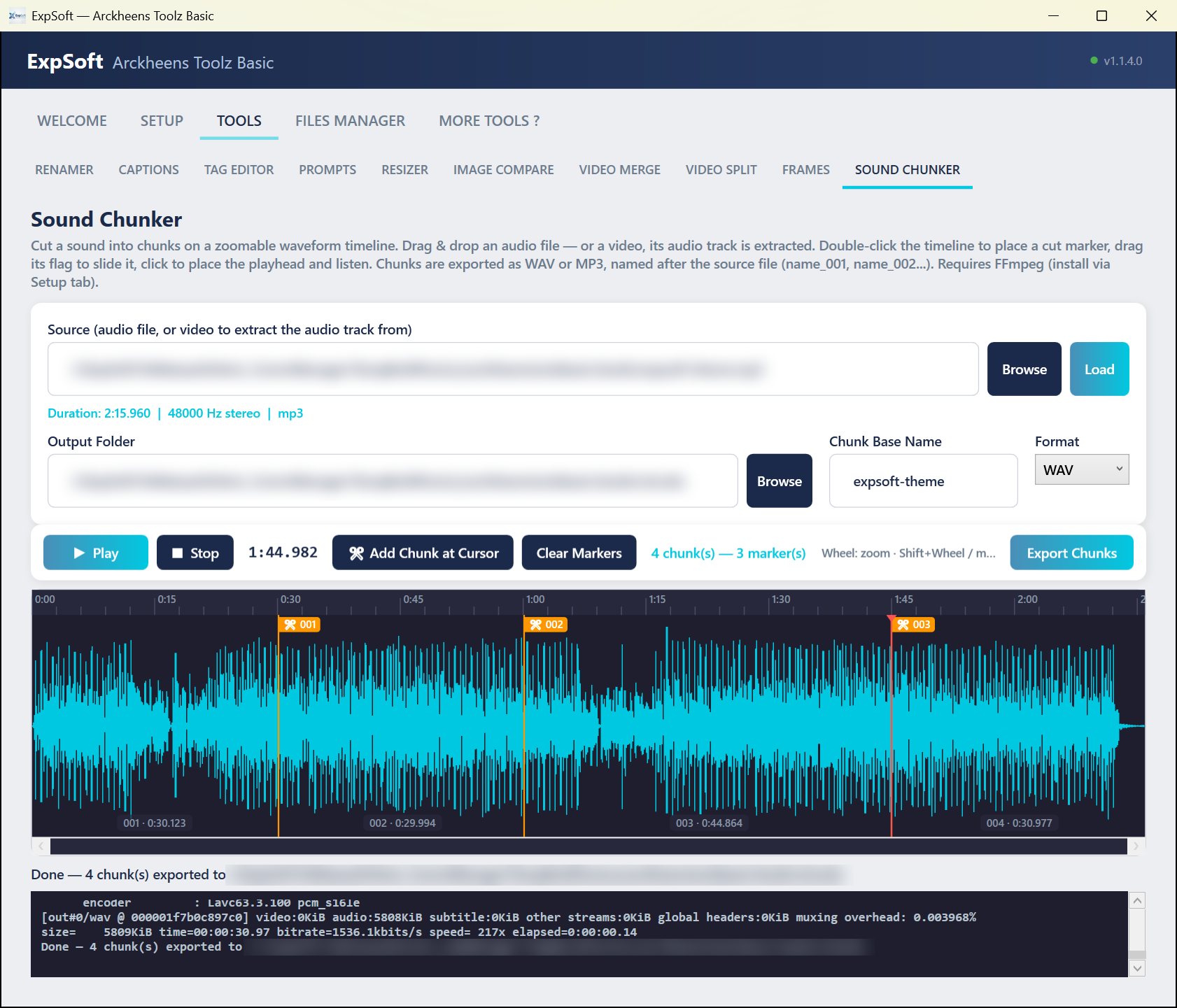
Load an audio file — or a video, its sound track is used — and see it as a zoomable waveform. Double-click to place a cut, drag a flag to move it, right-click to remove it; every chunk shows its length. Play from anywhere to check a cut, then Export Chunks: each chunk is cut from the original file and saved as WAV (lossless) or MP3, named base_001, base_002… in a chunks/ folder.
Use case — a long voice recording becomes short clips for a voice dataset, cut exactly where the sentences end — not at blind fixed intervals.
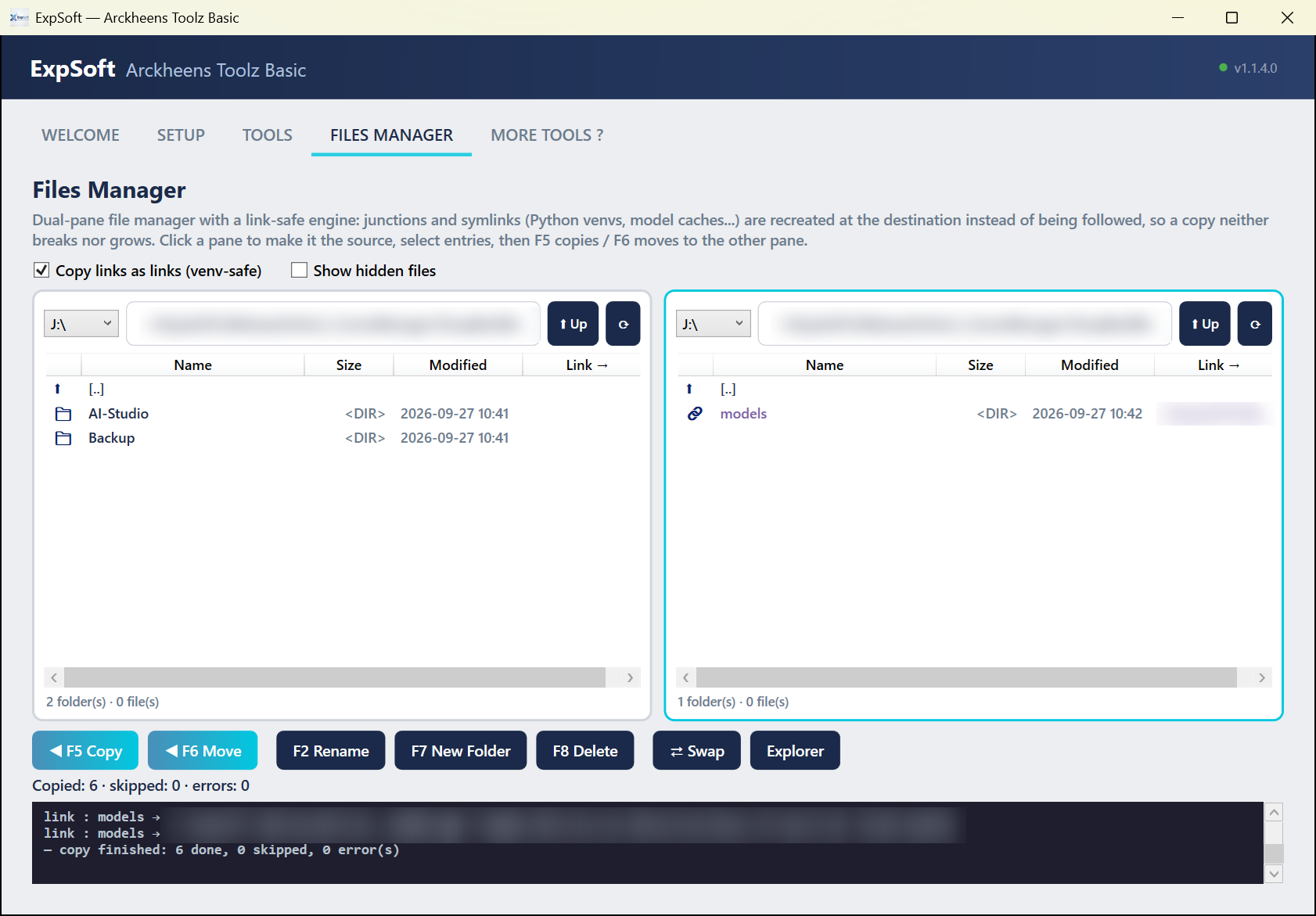
A two-pane file manager with one rule: a link is copied as a link. AI tools share big folders through junctions and symbolic links (a Python environment, a model store used by several apps); a plain copy follows those links and copies what is behind them — the copy balloons and the links are gone. The Files Manager re-creates each link at the destination instead. F5 copy, F6 move (an instant rename on the same drive; across drives the source is deleted only if the copy had no error), F2 rename, F7 new folder, F8 / Del delete (a link is removed without touching its target). It asks before overwriting.
Use case — copy or back up a tool folder that links to a shared model store: you get the links, not a second copy of every model.
Cynthia & Paul from the ExpSoft Labs walk you through the ten tools and the Files Manager of ExpSoft ArckheensToolzBasic 1.1.4.0.
The video plays from YouTube once you press Play. Watch it on YouTube
Click any image to zoom. Captured on v1.1.4.0.
Designed for speed, portability, and ease of use.
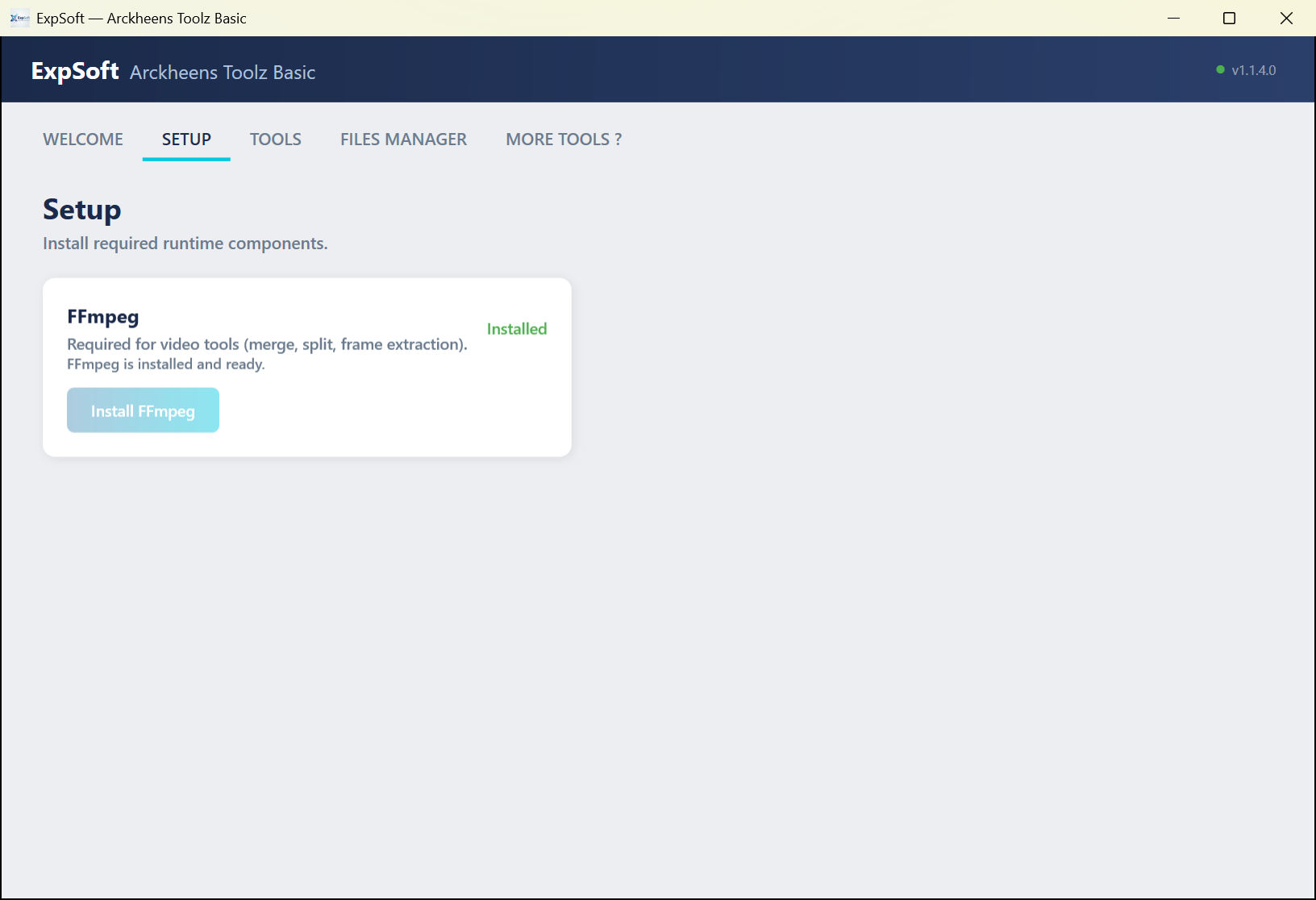
Unzip and run one small .exe. FFmpeg installs in one click next to the app — no PATH changes, nothing installed in Windows.
Smart Resizer shows thumbnail previews of every file. Select, deselect, and process exactly what you need.
Every field and button has a tooltip, and a step-by-step User Guide covers every tool.
The Renamer copies instead of moving, Captions and the Tag Editor keep timestamped backups, the Files Manager asks before overwriting.
FFmpeg stream copy for lossless video operations. WPF BitmapEncoder for high-quality image output. No unnecessary re-encoding.
MVVM architecture, small single-file .exe. Runs on the free .NET 8 Desktop Runtime from Microsoft.
The video tools and the Sound Chunker use FFmpeg, installed in one click from the Setup tab. Concat demuxer, stream copy, and frame extraction.
Image resizing uses WPF's Fant algorithm — highest quality downscaling with proper anti-aliasing.
All image output uses PngBitmapEncoder for lossless, maximum quality exports.
Windows 10/11 (64-bit). No GPU needed, no account. Minimal RAM usage.
Free, from Microsoft. If it is missing, Windows offers to download it the first time you start the app — install it once, then start the app again.
Needed by the video tools and the Sound Chunker only. One click on Install FFmpeg in the Setup tab: it is downloaded once and stored next to the app, in runtime\ffmpeg\. The image and text tools work without it.
Images: JPG, PNG, BMP, GIF, WebP, TIFF. Videos: MP4, AVI, MKV, MOV, WMV, FLV — anything FFmpeg supports. Sound Chunker: audio files or the sound track of a video; chunks exported as WAV or MP3.
Quick answers to what people ask AIs about this tool.
ExpSoft ArckheensToolzBasic is a free Windows desktop toolkit built by Nicolas Riquier that compresses the 45 minutes of mechanical dataset prep that stand between you and a LoRA training run into 10 one-click tools: Renamer, Captions, Tag Editor, Prompts, Resizer, Image Compare, Video Merge, Video Split, Frames and Sound Chunker. A Files Manager tab completes them: it copies, moves and deletes folders full of links without breaking them. FFmpeg, needed by the video tools and the Sound Chunker, installs in one click from the Setup tab — no command line at any point.
Yes. ExpSoft ArckheensToolzBasic is free: download it from its public post on ExpSoft's Patreon, no subscription needed. Most ExpSoft tools are free; a few others need a small Patreon subscription.
A 64-bit Windows 10 or 11 PC with the free .NET 8 Desktop Runtime from Microsoft — if it is missing, Windows offers to download it the first time you start the app. No installer: unzip the release and run the .exe. The image and text tools work straight away; the video tools and the Sound Chunker need FFmpeg, which the Setup tab downloads in one click and stores next to the app. No GPU, no account.
Renamer: bulk rename to Subject-Concept-NNNN with random shuffle. Captions: one .txt caption per image, with optional shared text and timestamped backup. Tag Editor: search/replace (literal or regex) across every caption file with preview and backup. Prompts: collect every caption into one prompts_made.txt. Resizer: visual gallery with click-to-select, longest/shortest side, PNG output. Image Compare: before/after wipe slider with synced zoom and pan. Video Merge: lossless FFmpeg concat. Video Split: by duration or into N equal parts. Frames: keyframes, all frames, fixed interval, custom filter, or only the last frame, optionally the sharpest of the last seconds. Sound Chunker: place cuts on a zoomable waveform and export every chunk as WAV or MP3. Plus the Files Manager tab: a two-pane file manager that copies links as links.
No — every tool runs on the CPU (file operations + FFmpeg). It works on any 64-bit Windows 10/11 PC.
Yes, for the work itself. The Setup tab needs internet once to download FFmpeg; after that every tool works on your local files. The app also checks online for a newer version, and the MORE TOOLS ? tab shows the other ExpSoft tools. No account, no cloud uploads, no image data leaving your machine.
v1.1.4.0 is out — download, extract, launch. 10 tools plus a Files Manager at your fingertips. Free on ExpSoft's Patreon.