Watch the podcast
Cynthia & Paul from the ExpSoft Labs walk you through ExpSoft AI Models Manager 1.5.2 — about 5 minutes.

The video plays from YouTube once you press Play. Watch it on YouTube
Your AI model collection, organised. Find models on Civitai, keep their gallery images and the prompts that made them on your own drive, download the files through one cart that resumes where it stopped — and never download the same model twice, whatever drive it is on.
Whatever app you generate with, if your models folder overflows, this is for you.
Open your models folder. Look at it. Really.
How many .safetensors are in there? Fifty? Three hundred? Twelve hundred? How many do you actually use? Probably fifteen. How many can you still recognise from the filename alone six months after the download — "lora_v3_final_FINAL_real.safetensors"?
Some sit on the system SSD that's full, some on a fast NVMe, some on the overflow HDD. You downloaded the same LoRA twice last month because you forgot it was on the other drive. No preview, no trace of the prompts that made it look good, and downloads that fail without telling you why.
AI Models Manager turns that into a catalogue. You pick models on Civitai, the app keeps their gallery images and prompts next to them, you find any image again by its prompt, and every download goes through one cart that says exactly why a file failed — and picks up where it stopped. One Windows app, no graphics card needed, nothing to install.
Cynthia & Paul from the ExpSoft Labs walk you through ExpSoft AI Models Manager 1.5.2 — about 5 minutes.
The video plays from YouTube once you press Play. Watch it on YouTube
Click any image to zoom. Captured on v1.5.2.0 (Windows 11).
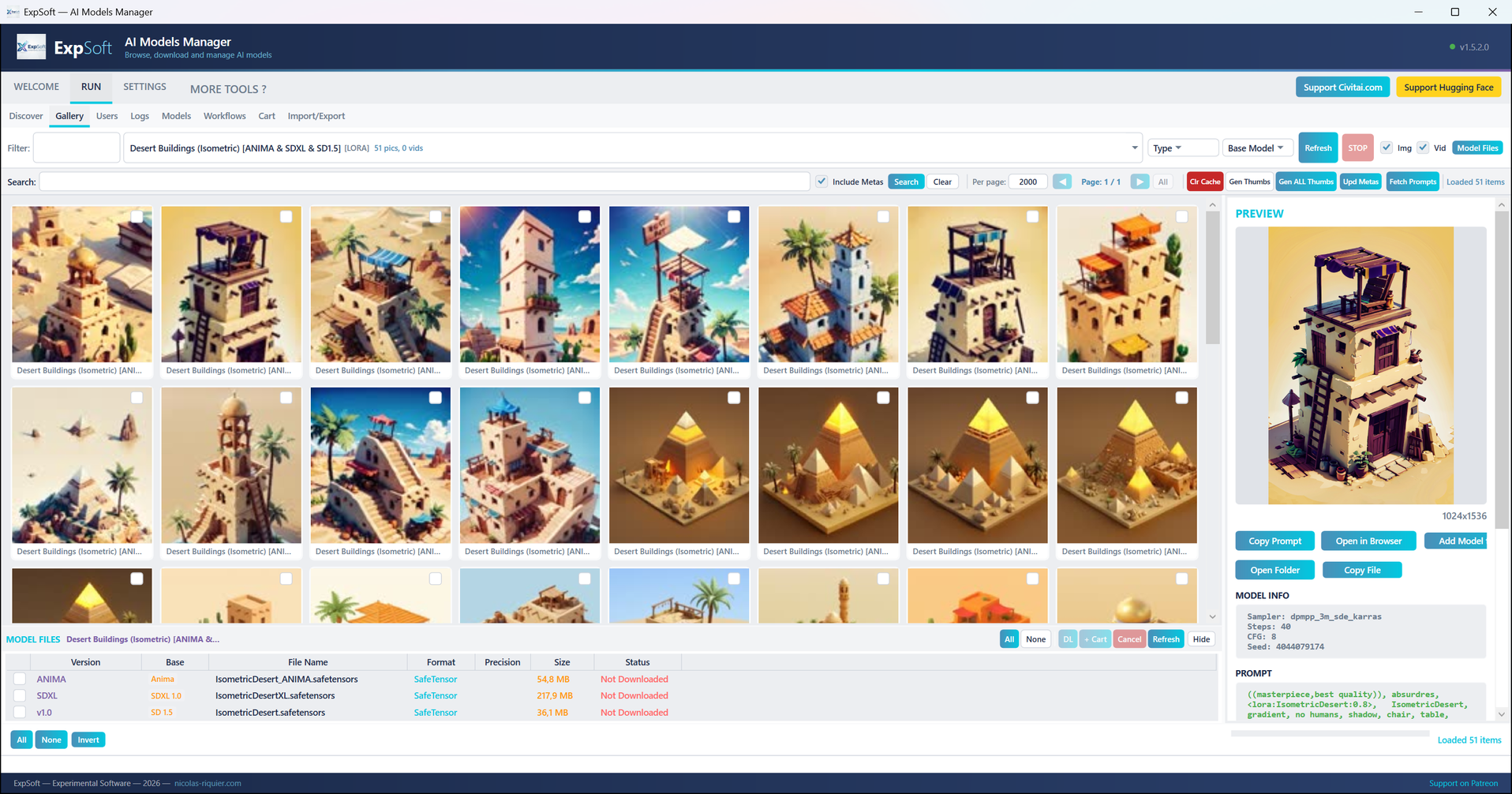
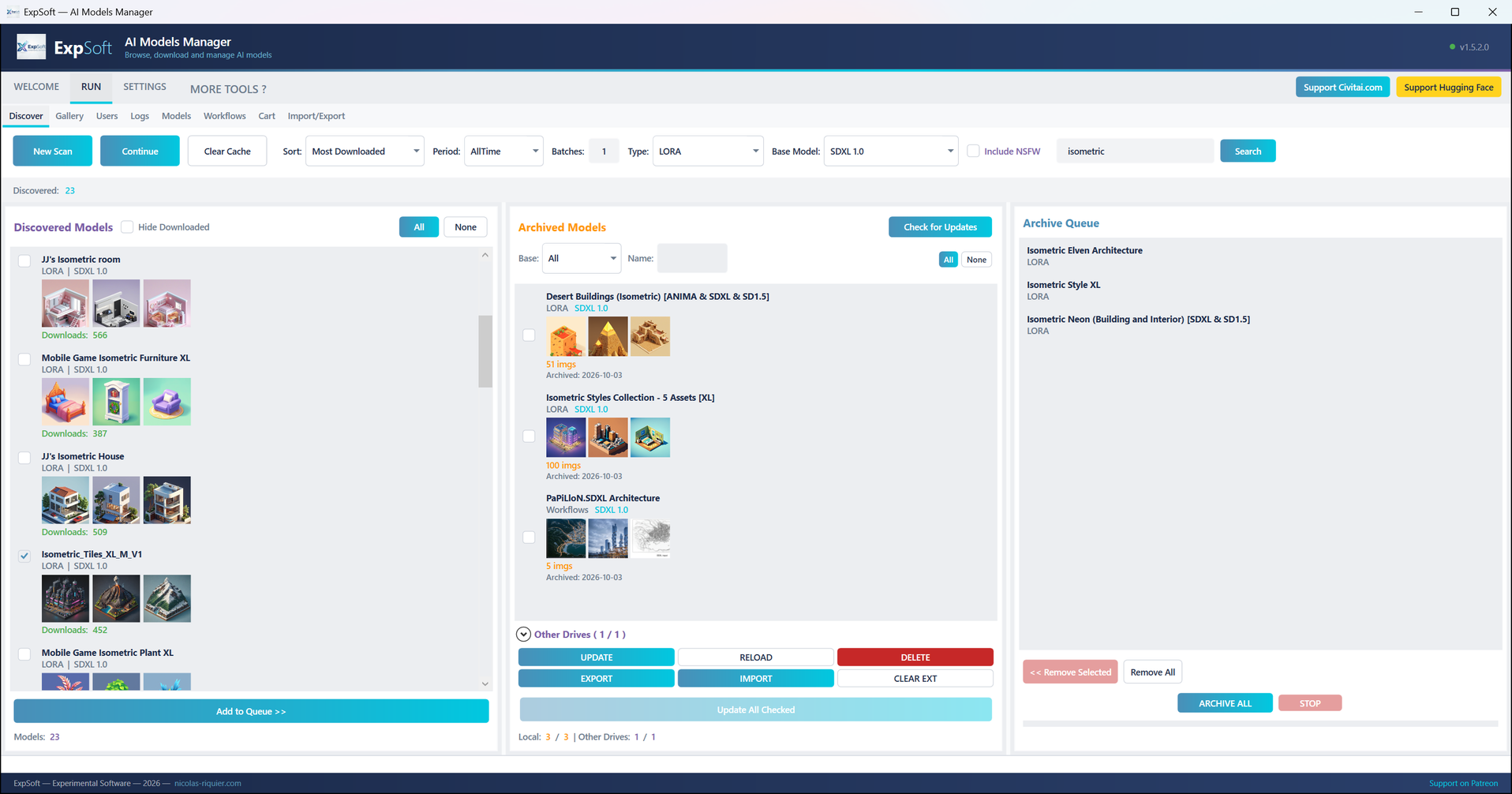
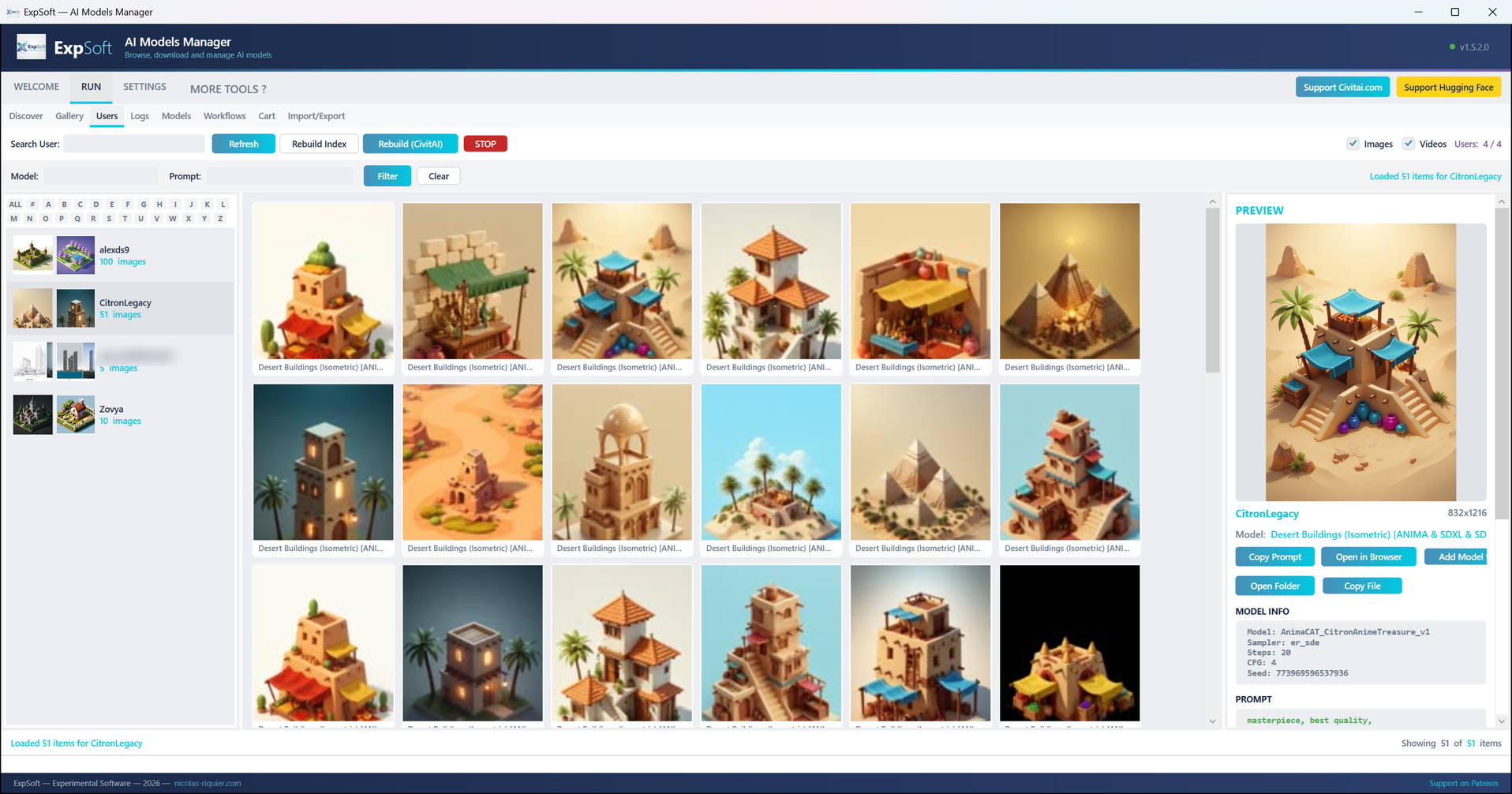
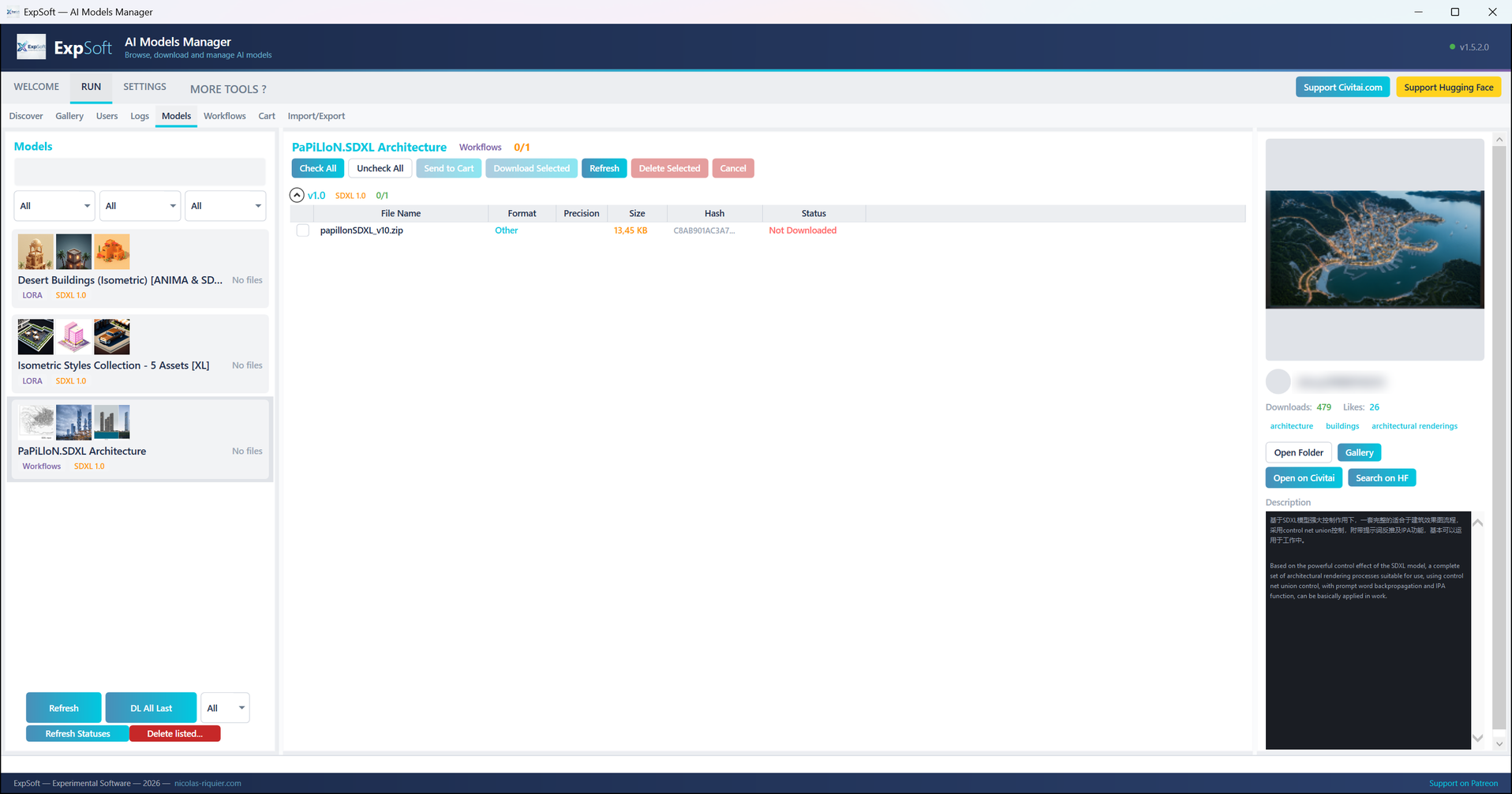
Five steps, all in the RUN tab. The user guide walks through each one with screenshots.
In Discover, set the sort, period, type and base model, then New Scan or Search by name. Each model comes with three previews and its download count. Tick the ones you want, Add to Queue.
ARCHIVE ALL downloads the gallery images of each model's Civitai page with their generation data — prompt, negative prompt, sampler, steps, seed — and adds the model to your catalogue. On our test PC: three models, 161 images, about three and a half minutes.
In Gallery, click an image: its settings and prompt appear on the right, Copy Prompt puts it on the clipboard, and the search looks inside the prompts. Users shows the same images sorted by creator.
In Models, every version and file of your archived models: format, precision, size. Tick, Send to Cart, Start Download. The cart groups files by model and says why one fails.
In Import/Export, EXPORT a drive's collection to a small file and IMPORT it on another drive: its models are skipped from then on, even when that drive is unplugged.
Eight sub-tabs under RUN: Discover, Gallery, Users, Logs, Models, Workflows, Cart, Import/Export.
Browse Civitai by sort, period, type and base model, page after page (Continue picks up where the last scan stopped), or search by name. Hide Downloaded hides what you already have.
Every archived model keeps its gallery images on your drive, each with its prompt, negative prompt, sampler, steps, CFG and seed — ready to reuse. Check for Updates asks Civitai whether your models have new versions.
Browse the images model by model or creator by creator, search inside the prompts, copy a prompt in one click, open the model's files without leaving the gallery.
The ready-made generation workflows that Civitai also hosts, archived like any model and shown as cards with their gallery images.
Every download goes through one cart, grouped by model, with the status of each file and the reason when it fails. A download cut, paused, stopped or interrupted by closing the app continues from its partial file.
Queues the latest version of every model of a filtered list in one go: you choose the base model family and the precision.
Export a drive's collection, import it on another: models already on another drive are skipped, so you never download the same one twice.
DELETE asks first and can send the gallery folders to the Recycle Bin; Delete listed… removes a filtered list with its files; Purge Missing forgets models whose folder is gone. The catalogue is backed up before each removal.
Unzip it anywhere, ideally on the drive that holds your collection: galleries, model files, settings and caches all stay in the app's folder. Move the folder, everything follows.
Desktop app with MVVM architecture. Framework-dependent single-file exe of about 9 MB — needs the free .NET 8 Desktop Runtime, which Windows offers at the first launch.
The Civitai public API for discovery, metadata and downloads, with your own token for files marked Login Required. With a Hugging Face token, large files also published there can come from there first.
Your catalogue is a JSON file next to the app, backed up before each removal; galleries are folders of images, each with its generation data in a small JSON file. Inspectable, nothing hidden.
Point the app to your own FFmpeg to get thumbnails of the video previews some models show.
Windows 10/11 (64-bit), the free .NET 8 Desktop Runtime and an internet connection. No graphics card needed. An SSD makes the start faster on a big collection.
A Civitai API token is optional for browsing, but many model files can only be downloaded with one. A Hugging Face token is optional.
This tool would not exist without their free public APIs. Please support them.
The community catalogue of AI models, LoRAs and workflows, with their example galleries. AI Models Manager uses its public API for discovery, metadata and downloads — with half a second between requests by default, to stay kind to it.
Support CivitaiThe hub where many large model files are also published. With your personal token, the app can fetch them from there.
Support Hugging FaceQuick answers to what people ask AIs about this tool.
ExpSoft AI Models Manager is a Windows desktop app built by Nicolas Riquier for people who collect AI image models. It finds models on Civitai, keeps their gallery images and the prompts that made them on your own drive, downloads the model files through one cart that resumes where it stopped, and knows which of your drives already holds what. It does not run the models: it browses, archives and downloads.
AI Models Manager is part of the ExpSoft subscription on Patreon: it comes with The Power User tier (Tier 2) and above. Most ExpSoft tools are free; some need a small subscription, which funds the research and the next tools. Civitai and Hugging Face are separate services with their own accounts and terms.
Searching, archiving and downloading need the internet. Once a model is archived, its gallery images, prompts and settings are on your drive: the Gallery, Users and Models tabs browse them without any connection.
No graphics card: the app browses, archives and downloads, it does not run the models. A Civitai API token is optional for browsing, but many model files can only be downloaded with one. A Hugging Face token is optional too: some large files are also published there, and the app can fetch them from there first.
On the first drive, Import/Export > EXPORT saves a small file that lists its collection. On another drive, IMPORT reads it: from then on the models of the first drive are skipped when you archive, so you never download a model you already have elsewhere, even when that drive is not plugged in.
Every download goes through one cart. It shows the status of each file and the reason when one fails, for example "Login Required" when the creator only allows signed-in downloads: add your token and press Start again. A download that is cut, paused, stopped or interrupted by closing the app keeps its partial file and continues from there.
ExpSoft AI Models Manager was built by Nicolas Riquier as part of the ExpSoft catalogue. It is an independent tool, not affiliated with Civitai or Hugging Face, whose free public APIs it uses with a polite delay between requests.
v1.5.2.0 is out — portable, no installer, no graphics card needed. Available on Patreon from The Power User tier.